6 Best Active Styluses for Windows Laptops in 2026
The Microsoft Surface Slim Pen 2 is the safest pick for most people with a Surface device, because Microsoft lists tilt support, pressure sensitivity and haptic feedback for it. If you own a non-Surface 2-in-1 that uses Microsoft Pen Protocol, the Metapen M2 is a cheaper alternative.
 By Shihab Mia · Published 27 Nov 2026
We run no ads and no affiliate links at launch. The order of a list follows our published method. How lists are ordered: how we score.
Prices are the starting prices vendors list publicly. Plans change, so confirm the current price on the vendor page before you buy.
Key takeaways
- Microsoft Pen Protocol (MPP) is the common standard on most Windows 2-in-1s, but not every pen works on every laptop.
- The Surface Slim Pen 2 is sold by Microsoft at a published list price and charges through a Surface charging accessory.
- Cheaper MPP pens from Metapen and similar brands often skip tilt or haptic features to hit a lower price.
- Wacom AES pens are a separate protocol and will not work on MPP-only screens.
- Always check your laptop's pen protocol and pressure level support before buying.
Side-by-side
Grouped by fit and cost. Tap a product to jump to its full entry.
| Fit | Cost | |||
|---|---|---|---|---|
| Product | Best for | Standout feature | Listed starting price | Free plan or trial |
| 1Microsoft Surface Slim Pen 2 | Surface owners who want the full feature set | Designed for Surface Pen Protocol | Check current retail price | One-time hardware purchase |
| 2Metapen M2 | Budget MPP pen for non-Surface 2-in-1s | Uses Microsoft Pen Protocol | Check current retail price | One-time hardware purchase |
| 3Lenovo Precision Pen 2 | Lenovo Yoga and IdeaPad 2-in-1 owners | Made for Lenovo convertibles | Check current retail price | One-time hardware purchase |
| 4HP Rechargeable MPP 2.0 Tilt Pen | HP Spectre and Envy convertible owners | MPP 2.0 support | Check current retail price | One-time hardware purchase |
| 5Dell Active Pen PN5122W | Dell Inspiron and Latitude 2-in-1 owners | Made for Dell 2-in-1s | Check current retail price | One-time hardware purchase |
| 6Microsoft Classroom Pen 2 | Schools and basic note taking on Surface devices | Simple Surface-compatible pen | Check current retail price | One-time hardware purchase |
How we picked
We compared these pens using vendor product pages, published spec sheets and compatibility lists from Microsoft, Wacom, Lenovo, HP, Dell and Metapen. We checked the stated protocol, pressure and tilt support, charging method and published list price where available. We did not run hands-on tests. Where a vendor does not publish a firm price, we mark it as check current retail price rather than guess. Compatibility notes come from the manufacturers' own documentation.
The 6 picks in detail
- Best for
- Surface owners who want the full feature set
- Standout
- Designed for Surface Pen Protocol
- Starting price
- Check current retail price
- Free plan or trial
- One-time hardware purchase
The Surface Slim Pen 2 is Microsoft's current slim stylus for Surface devices. Microsoft lists pressure sensitivity, tilt support and haptic feedback, and the pen charges through a Surface Pen charging accessory or a compatible Surface keyboard with a built-in pen storage slot. The flat shape is meant to sit in those slots rather than roll off a desk.
It suits people who already own a recent Surface Pro, Surface Laptop Studio or Surface Studio. The main catch is that the haptic feedback and some features depend on the device, and the pen does not ship with a charger in the base box. Buyers without a Surface keyboard should budget for the charging accessory.
Where the price comes from
Check current retail price. Hardware prices move often, so check the Microsoft Surface Slim Pen 2 maker page or a retailer before you buy.
Benefits
- Designed for Surface Pen Protocol
- supports tilt and pressure sensitivity
- haptic feedback on compatible Surface devices
Drawbacks
- Charging requires a Surface accessory or keyboard with a pen garage
- works best only on Surface hardware
Use case to skip: this limit matters to you: charging requires a Surface accessory or keyboard with a pen garage.
Our take. A sensible pick for surface owners who want the full feature set.
If it does not fit, compare Metapen M2 or Lenovo Precision Pen 2 in this list.
- Best for
- Budget MPP pen for non-Surface 2-in-1s
- Standout
- Uses Microsoft Pen Protocol
- Starting price
- Check current retail price
- Free plan or trial
- One-time hardware purchase
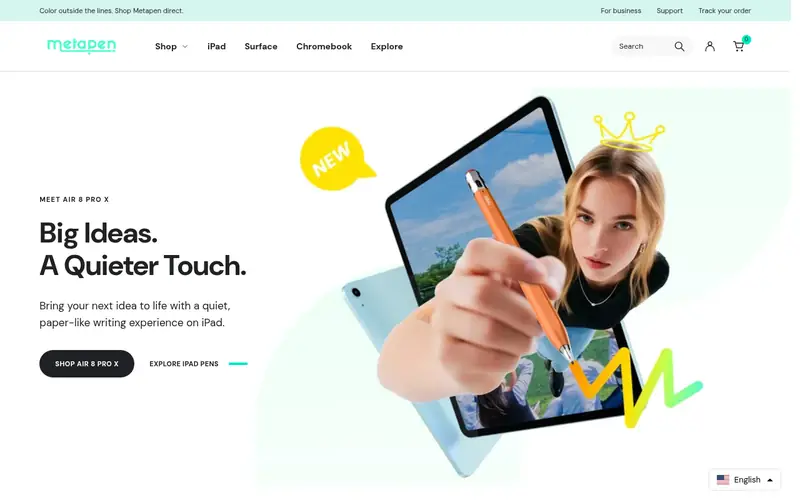
Metapen makes MPP-compatible pens aimed at Windows tablets and 2-in-1s that do not come with a pen in the box. The M2 is one of its current models, and the company lists compatibility with a range of Windows devices that use Microsoft Pen Protocol. It is a common budget choice for people who lost a first-party pen or bought a laptop without one.
The catch is that MPP is a protocol, not a guarantee. Pressure levels, tilt and palm rejection depend on what the laptop's digitizer supports, so a cheap pen can feel limited on a low-end screen. Check the Metapen compatibility list against your exact model before ordering.
Where the price comes from
Check current retail price. Hardware prices move often, so check the Metapen M2 maker page or a retailer before you buy.
Benefits
- Uses Microsoft Pen Protocol
- works with many Windows 2-in-1s
- lower price than first-party pens
Drawbacks
- Feature set varies by device
- tilt and pressure support depends on the laptop
Use case to skip: this limit matters to you: feature set varies by device.
Our take. A sensible pick for budget MPP pen for non-Surface 2-in-1s.
If it does not fit, compare Microsoft Surface Slim Pen 2 or Lenovo Precision Pen 2 in this list.

- Best for
- Lenovo Yoga and IdeaPad 2-in-1 owners
- Standout
- Made for Lenovo convertibles
- Starting price
- Check current retail price
- Free plan or trial
- One-time hardware purchase
Lenovo's Precision Pen 2 is the first-party stylus for many Lenovo Yoga and IdeaPad 2-in-1s. Lenovo lists pressure sensitivity and tilt support on compatible models, and the pen is rechargeable over USB-C. It is the natural choice if you bought a Lenovo convertible that supports an active pen but did not include one.
The catch is the same as with other first-party pens: the best features are tied to Lenovo hardware. On a non-Lenovo laptop it may work as a basic MPP pen or not at all. Check the Lenovo compatibility page for your exact model number.
Where the price comes from
Check current retail price. Hardware prices move often, so check the Lenovo Precision Pen 2 maker page or a retailer before you buy.
Benefits
- Made for Lenovo convertibles
- supports pressure sensitivity on compatible models
- rechargeable design
Drawbacks
- Best compatibility limited to Lenovo devices
- features vary by model
Use case to skip: this limit matters to you: best compatibility limited to Lenovo devices.
Our take. A sensible pick for lenovo Yoga and IdeaPad 2-in-1 owners.
If it does not fit, compare Microsoft Surface Slim Pen 2 or Metapen M2 in this list.
- Best for
- HP Spectre and Envy convertible owners
- Standout
- MPP 2.0 support
- Starting price
- Check current retail price
- Free plan or trial
- One-time hardware purchase
HP's Rechargeable MPP 2.0 Tilt Pen is the first-party pen for HP's convertible laptops, including Spectre and Envy models. HP lists MPP 2.0 support and tilt functionality on compatible screens, and the pen recharges over USB-C rather than using a disposable battery.
It suits HP owners who want a pen that matches their laptop's digitizer. The main catch is regional availability and the fact that tilt and pressure depend on the specific HP model. Buyers with a non-HP MPP laptop should treat it as a generic MPP pen and check compatibility first.
Where the price comes from
Check current retail price. Hardware prices move often, so check the HP Rechargeable MPP 2.0 Tilt Pen maker page or a retailer before you buy.
Benefits
- MPP 2.0 support
- tilt functionality on compatible HP screens
- rechargeable battery
Drawbacks
- Best features tied to HP devices
- availability varies by region
Use case to skip: this limit matters to you: best features tied to HP devices.
Our take. A sensible pick for HP Spectre and Envy convertible owners.
If it does not fit, compare Microsoft Surface Slim Pen 2 or Metapen M2 in this list.
- Best for
- Dell Inspiron and Latitude 2-in-1 owners
- Standout
- Made for Dell 2-in-1s
- Starting price
- Check current retail price
- Free plan or trial
- One-time hardware purchase
Dell's Active Pen PN5122W is the current first-party pen for several Dell Inspiron and Latitude 2-in-1s. Dell lists pressure sensitivity and palm rejection on supported models, and the pen uses a battery rather than a built-in rechargeable cell. It is the safe pick if you own a compatible Dell convertible.
The catch is that Dell's pen support is model-specific. The PN5122W will not work on every Dell laptop, and it is not intended as a universal MPP pen. Check the Dell support page for your exact model before buying.
Where the price comes from
Check current retail price. Hardware prices move often, so check the Dell Active Pen PN5122W maker page or a retailer before you buy.
Benefits
- Made for Dell 2-in-1s
- pressure sensitivity on supported models
- replaceable battery design
Drawbacks
- Compatibility limited to selected Dell models
- not a universal MPP pen
Use case to skip: this limit matters to you: compatibility limited to selected Dell models.
Our take. A sensible pick for dell Inspiron and Latitude 2-in-1 owners.
If it does not fit, compare Microsoft Surface Slim Pen 2 or Metapen M2 in this list.
- Best for
- Schools and basic note taking on Surface devices
- Standout
- Simple Surface-compatible pen
- Starting price
- Check current retail price
- Free plan or trial
- One-time hardware purchase
The Classroom Pen 2 is Microsoft's education-focused Surface pen. Microsoft lists it as compatible with Surface devices and designed for classroom use, with a simpler feature set than the Slim Pen 2. It is meant for basic writing and note taking rather than drawing or haptics.
It suits schools and buyers who want a straightforward Surface pen without paying for features they will not use. The catch is availability: it is sold mainly through education channels, and it lacks the tilt and haptic features of the Slim Pen 2. Check the Microsoft education store for current pricing.
Where the price comes from
Check current retail price. Hardware prices move often, so check the Microsoft Classroom Pen 2 maker page or a retailer before you buy.
Benefits
- Simple Surface-compatible pen
- built for education use
- no extra features to configure
Drawbacks
- Fewer features than the Slim Pen 2
- sold mainly through education channels
Use case to skip: this limit matters to you: fewer features than the Slim Pen 2.
Our take. A sensible pick for schools and basic note taking on Surface devices.
If it does not fit, compare Microsoft Surface Slim Pen 2 or Metapen M2 in this list.
What specs matter most when buying an active stylus for a Windows laptop?
The two specs that matter most are pen protocol and pressure sensitivity, followed by tilt support and how the pen charges. Protocol decides whether the pen works at all; pressure and tilt decide how good it feels once it does.
Microsoft Pen Protocol (MPP) is the most common standard on Windows 2-in-1s, but Wacom AES is used on some devices. A pen built for one protocol will not work properly on the other. Check your laptop's spec sheet for the protocol name, or search the manufacturer's support page for your model plus "pen support".
Pressure sensitivity is usually listed as a number of levels. Higher numbers give finer control in drawing apps, but the laptop's digitizer sets the ceiling, so a high-level pen on a low-level screen will not add detail. Tilt support matters for shading in art apps. For charging, some pens use a built-in rechargeable battery, others use a replaceable AAAA or coin cell, and Surface Slim Pens charge through a keyboard or accessory. Pick the charging style that fits how you work.
Which active stylus should I buy if I own a non-Surface Windows 2-in-1?
Start with the Metapen M2 if your laptop uses Microsoft Pen Protocol and you want a low-cost pen. If your device is a Lenovo, HP or Dell convertible, the first-party pen for that brand is the safer choice.
First-party pens are matched to the digitizer, so pressure and tilt are more likely to work as advertised. The Lenovo Precision Pen 2, HP Rechargeable MPP 2.0 Tilt Pen and Dell Active Pen PN5122W are the picks for those brands. Only fall back to a generic MPP pen when the first-party option is out of stock or your model is not on the supported list. Confirm the protocol before paying.
Questions worth answering first
Buying checklist
- Confirm your laptop's pen protocol (MPP or Wacom AES) on the manufacturer's spec page.
- Check the pen's compatibility list for your exact laptop model number.
- Note the pressure sensitivity your laptop's digitizer supports, not just the pen's rating.
- Decide whether you want a rechargeable pen or a replaceable battery.
- Check whether the pen ships with a charger or needs a separate accessory.
- Confirm the return policy in case the pen does not pair with your device.
FAQ
Do all Windows laptops support an active stylus?
No. Only laptops with a built-in active digitizer support an active pen. Many budget laptops have touchscreens but no pen digitizer, so a pen will not work. Check the spec sheet for pen support before buying.
What is the difference between MPP and Wacom AES?
MPP is Microsoft's pen protocol, used on Surface devices and many Windows 2-in-1s. Wacom AES is a separate active pen technology used on some Windows tablets. A pen built for one protocol generally will not work on a device built for the other.
Can I use a Surface Pen on a non-Surface laptop?
Sometimes. Surface pens use MPP, so they may work as basic pens on other MPP laptops, but features like haptics and tilt may not carry over. Check the laptop maker's compatibility notes first.
Do active styluses need charging?
Most do. Some use a built-in rechargeable battery over USB-C, others use a replaceable AAAA or coin cell, and Surface Slim Pens charge through a compatible keyboard or charging accessory. Check the pen's power method before buying.
Is a cheaper MPP pen good enough for note taking?
Often yes. For handwriting and basic notes, a budget MPP pen can be enough if your laptop's digitizer supports palm rejection. Drawing and shading benefit more from tilt support and higher pressure levels.
Will an active pen work with drawing apps on Windows?
Yes, if the app supports pen input and your laptop has a pen digitizer. Apps like OneNote, Photoshop and Krita accept pressure and tilt where the hardware provides it. Check the app's pen settings after pairing.
Sources we checked
Change log: First published 27 Nov 2026.