6 Best Bootable USB Creator Software in 2026
Rufus is the top pick for most Windows users who need a fast, free bootable USB creator, and it suits people making Windows or Linux installers from an ISO file. If you need to boot many different ISO images from one drive, Ventoy is the better fit. If you want a cross-platform tool with a graphical interface on Windows, Linux and macOS, balenaEtcher is the simplest alternative.
 By Shihab Mia · Published 21 Nov 2026
We run no ads and no affiliate links at launch. The order of a list follows our published method. How lists are ordered: how we score.
Prices are the starting prices vendors list publicly. Plans change, so confirm the current price on the vendor page before you buy.
Key takeaways
- Rufus is free and open source, and runs on Windows only.
- Ventoy is free and open source, and lets you copy several ISO files onto one USB drive.
- balenaEtcher is free and open source, with builds for Windows, Linux and macOS.
- UNetbootin is free and open source, and can download some distributions directly.
- Fedora Media Writer is free and open source, and is maintained by the Fedora Project.
Side-by-side
Grouped by fit and cost. Tap a product to jump to its full entry.
| Fit | Cost | |||
|---|---|---|---|---|
| Product | Best for | Standout feature | Listed starting price | Free plan or trial |
| 1Rufus | Fast Windows and Linux installer creation on Windows | Small download | Free (open-source utility) | Free and open source |
| 2Ventoy | One USB drive holding many bootable ISO files | Copy ISO files directly to the drive | Free (open-source utility) | Free and open source |
| 3balenaEtcher | Simple image writing on Windows, Linux and macOS | Same interface on all three platforms | Free (open-source utility) | Free and open source |
| 4UNetbootin | Downloading and writing Linux ISOs in one step | Can download some distributions directly | Free (open-source utility) | Free and open source |
| 5Fedora Media Writer | Writing Fedora and other Linux install media | Maintained by the Fedora Project | Free (open-source utility) | Free and open source |
| 6Windows USB/DVD Download Tool | Legacy Microsoft ISO-to-USB writing | Made by Microsoft | Free (Microsoft utility) | Free |
How we picked
This comparison is based on research, not hands-on testing. We reviewed each project's official website, documentation and published feature lists, and noted which operating systems each tool supports and what image types it handles. We also checked whether each tool is free or paid and how it is maintained. Prices and features can change, so confirm details on the vendor or project page before you download.
The 6 picks in detail
- Best for
- Fast Windows and Linux installer creation on Windows
- Standout
- Small download
- Starting price
- Free (open-source utility)
- Free plan or trial
- Free and open source
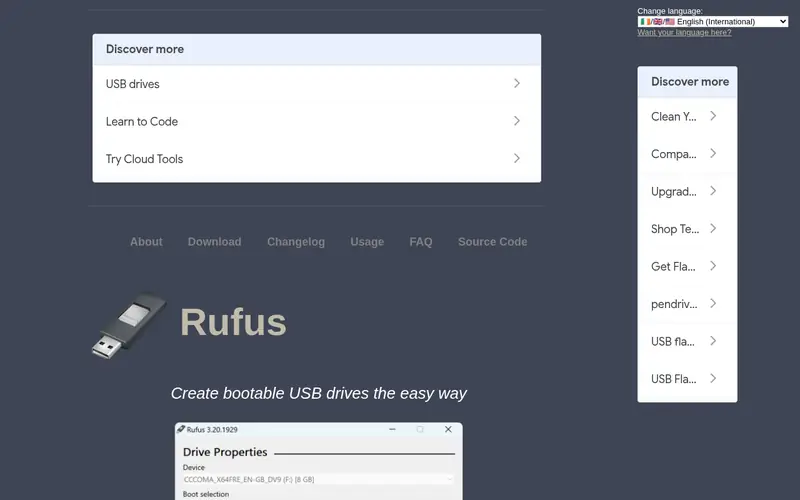
Rufus is a small utility for writing ISO images to USB drives on Windows. The project page lists support for Windows and Linux installation media, and it offers a portable build that runs without installation. It is widely used because it is quick and the download is small.
The interface is plain and direct: pick a device, pick an ISO, and start. Advanced settings exist for partition scheme and file system, which matter when you build media for UEFI or legacy BIOS systems. The main catch is that it runs on Windows only, so macOS and Linux users need another tool.
Where the price comes from
Free (open-source utility), as listed by the vendor (Rufus website). Confirm the current plan price before you buy.
Benefits
- Small download
- works with Windows and Linux ISO files
- portable version needs no install
Drawbacks
- Windows only
- some advanced options can confuse new users
Use case to skip: this limit matters to you: windows only.
Our take. A sensible pick for fast Windows and Linux installer creation on Windows.
If it does not fit, compare Ventoy or balenaEtcher in this list.
- Best for
- One USB drive holding many bootable ISO files
- Standout
- Copy ISO files directly to the drive
- Starting price
- Free (open-source utility)
- Free plan or trial
- Free and open source
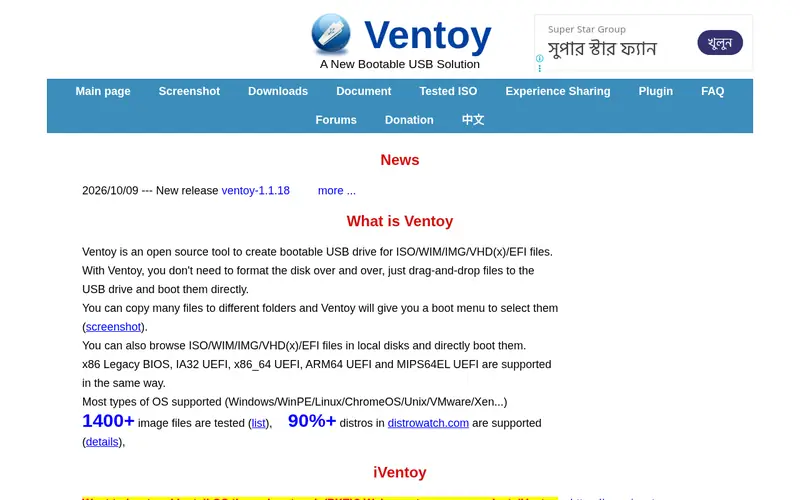
Ventoy installs a small boot loader to a USB drive. After that you copy ISO files onto the drive like normal files, and a menu appears at boot so you can pick which image to start. This avoids rewriting the drive for every new installer.
The project lists support for a wide range of ISO files, including Windows and Linux installers. It is a good fit for technicians who carry several installers on one stick. The catch is that the drive must be set up with Ventoy first, and a few older machines may not boot from it.
Where the price comes from
Free (open-source utility), as listed by the vendor (Ventoy website). Confirm the current plan price before you buy.
Benefits
- Copy ISO files directly to the drive
- boot menu lists every image
- supports many distributions
Drawbacks
- Requires installing Ventoy to the drive first
- some very old systems may not boot from it
Use case to skip: this limit matters to you: requires installing Ventoy to the drive first.
Our take. A sensible pick for one USB drive holding many bootable ISO files.
If it does not fit, compare Rufus or balenaEtcher in this list.
- Best for
- Simple image writing on Windows, Linux and macOS
- Standout
- Same interface on all three platforms
- Starting price
- Free (open-source utility)
- Free plan or trial
- Free and open source
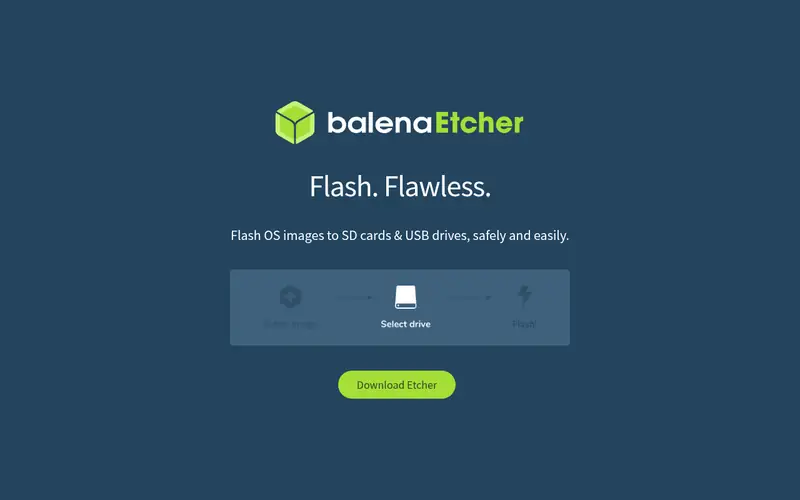
balenaEtcher writes image files to USB drives and SD cards. It is available for Windows, Linux and macOS, and the interface is the same on each. The flow is short: select the image, select the target, and flash.
The tool validates the written data after flashing, which helps catch a bad write. It is a good choice for people who move between operating systems or want the fewest possible settings. The catch is that it offers fewer advanced options than Rufus, and the download is larger.
Where the price comes from
Free (open-source utility), as listed by the vendor (balenaEtcher website). Confirm the current plan price before you buy.
Benefits
- Same interface on all three platforms
- validates the written image
- simple three-step flow
Drawbacks
- Larger download than some tools
- fewer advanced options than Rufus
Use case to skip: this limit matters to you: larger download than some tools.
Our take. A sensible pick for simple image writing on Windows, Linux and macOS.
If it does not fit, compare Rufus or Ventoy in this list.
- Best for
- Downloading and writing Linux ISOs in one step
- Standout
- Can download some distributions directly
- Starting price
- Free (open-source utility)
- Free plan or trial
- Free and open source
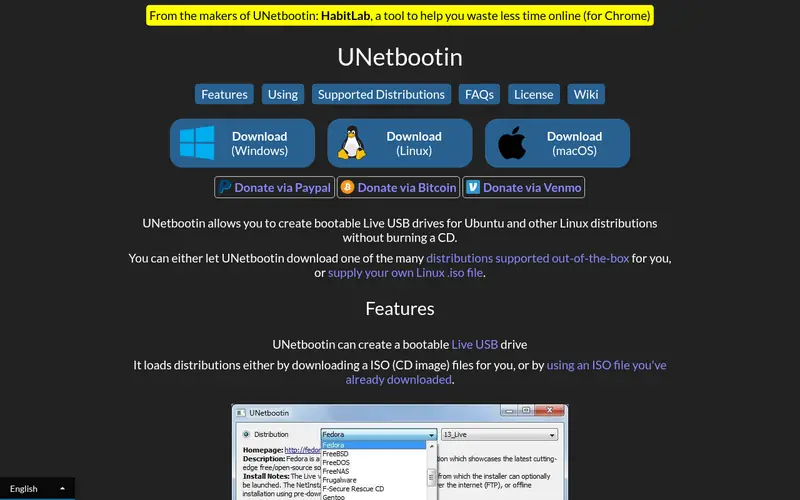
UNetbootin creates bootable USB drives for Linux and other operating systems. It can either use an ISO file you already have or download a supported distribution for you. Builds are listed for Windows, Linux and macOS.
It suits users who want a single tool that fetches and writes the image. The interface is basic and has changed little over the years. The catch is that the project sees fewer updates than some alternatives, so check that your chosen distribution is supported.
Where the price comes from
Free (open-source utility), as listed by the vendor (UNetbootin website). Confirm the current plan price before you buy.
Benefits
- Can download some distributions directly
- runs on Windows, Linux and macOS
- simple interface
Drawbacks
- Interface looks dated
- fewer recent updates than some rivals
Use case to skip: this limit matters to you: interface looks dated.
Our take. A sensible pick for downloading and writing Linux ISOs in one step.
If it does not fit, compare Rufus or Ventoy in this list.
- Best for
- Writing Fedora and other Linux install media
- Standout
- Maintained by the Fedora Project
- Starting price
- Free (open-source utility)
- Free plan or trial
- Free and open source
Fedora Media Writer is the official tool for writing Fedora installation media to a USB drive. It can download a Fedora image for you or write one you already have. Builds are offered for Windows, Linux and macOS.
It is the safest choice if you plan to install Fedora, because it is maintained by the same project that ships the distribution. The catch is that it is built around Fedora, so it is not the tool to pick for Windows installers or unrelated images.
Where the price comes from
Free (open-source utility), as listed by the vendor (Fedora Media Writer website). Confirm the current plan price before you buy.
Benefits
- Maintained by the Fedora Project
- can download Fedora images
- available for Windows, Linux and macOS
Drawbacks
- Focused on Fedora
- less useful for Windows installers
Use case to skip: this limit matters to you: focused on Fedora.
Our take. A sensible pick for writing Fedora and other Linux install media.
If it does not fit, compare Rufus or Ventoy in this list.
- Best for
- Legacy Microsoft ISO-to-USB writing
- Standout
- Made by Microsoft
- Starting price
- Free (Microsoft utility)
- Free plan or trial
- Free
The Windows USB/DVD Download Tool is a Microsoft utility for writing Windows ISO files to a USB drive or DVD. It was built for older Windows releases and has a very simple flow: choose the ISO, choose the target, and write.
It suits users working with older Windows media who want a Microsoft-made tool. The catch is that it is dated and limited to certain Windows ISO files, so for current releases check Microsoft's own download pages for the recommended method.
Where the price comes from
Free (Microsoft utility), as listed by the vendor (Windows USB/DVD Download Tool website). Confirm the current plan price before you buy.
Benefits
- Made by Microsoft
- simple ISO-to-USB flow
- familiar to Windows users
Drawbacks
- Dated tool
- limited to certain Windows ISO files
Use case to skip: this limit matters to you: dated tool.
Our take. A sensible pick for legacy Microsoft ISO-to-USB writing.
If it does not fit, compare Rufus or Ventoy in this list.
What to look for
Start with your operating system. Rufus runs on Windows only. balenaEtcher, UNetbootin and Fedora Media Writer offer builds for Windows, Linux and macOS. If you work across systems, a cross-platform tool saves you from learning a second interface.
Next, decide whether you need one installer or many. A single-image writer such as Rufus or balenaEtcher is simple and predictable. A multiboot tool such as Ventoy lets one drive hold several ISO files, which suits technicians and people who test distributions often.
Check that the tool supports the image you plan to write. Some tools are built around one distribution, such as Fedora Media Writer, while others handle a broad range of ISO files. Also confirm the boot mode your target machine uses, UEFI or legacy BIOS, and whether the tool lets you set the partition scheme.
Finally, look at the project's activity. A tool that is updated regularly is more likely to work with current images. Read the vendor or project page for the latest release notes before you download.
Questions worth answering first
Buying checklist
- Confirm the tool has a build for your operating system.
- Check that it supports the ISO file you plan to write.
- Decide whether you need single-image or multiboot support.
- Verify whether your target machine boots in UEFI or legacy BIOS mode.
- Read the latest release notes to confirm current support.
- Download only from the official project or vendor site.
FAQ
Is Rufus free?
Yes. Rufus is free and open source, and it is distributed through its official project site. There is no paid tier.
Can Ventoy hold more than one ISO?
Yes. Ventoy is designed to boot several ISO files from one drive, and a menu appears at boot so you can choose an image.
Does balenaEtcher work on macOS?
Yes. balenaEtcher offers builds for Windows, Linux and macOS, with the same interface on each platform.
Which tool is best for Fedora?
Fedora Media Writer is the official tool from the Fedora Project, so it is the natural choice for Fedora installation media.
Do these tools work for Windows installers?
Rufus and the Windows USB/DVD Download Tool are built for Windows media. Check each project page for the current supported releases.
Are these tools safe to download?
Download only from the official project or vendor site listed here. Avoid third-party mirrors, which may host modified copies.
Sources we checked
Change log: First published 21 Nov 2026.