6 Best FPS Counter and Frame Time Overlay Tools in 2026
MSI Afterburner with RivaTuner Statistics Server is the top pick for most people. It is free, shows frame rate and frame time in any game, and logs both to a file. Choose CapFrameX if you want detailed frame time analysis and benchmark capture. Choose NVIDIA App if you run an RTX card and want a simple built-in overlay with no extra install.
 By Shihab Mia · Published 21 Nov 2026
We run no ads and no affiliate links at launch. The order of a list follows our published method. How lists are ordered: how we score.
Prices are the starting prices vendors list publicly. Plans change, so confirm the current price on the vendor page before you buy.
Key takeaways
- MSI Afterburner and RivaTuner Statistics Server are free and work with most DirectX and Vulkan games.
- CapFrameX is free and focuses on frame time capture and comparison rather than a permanent on-screen counter.
- NVIDIA App is free but its performance overlay is limited to NVIDIA GeForce graphics cards.
- AMD Software: Adrenalin Edition includes a free performance overlay for Radeon owners.
- Some overlays can be blocked by anti-cheat systems, so check the game's rules before enabling one.
Side-by-side
Grouped by fit and cost. Tap a product to jump to its full entry.
| Fit | Cost | |||
|---|---|---|---|---|
| Product | Best for | Standout feature | Listed starting price | Free plan or trial |
| 1MSI Afterburner with RivaTuner Statistics Server | All-round on-screen FPS and frame time display | Free with no paid tier | Free (donationware, no paid tier) | Free plan |
| 2CapFrameX | Frame time capture and benchmark comparison | Free and focused on frame time analysis | Free (no paid tier) | Free plan |
| 3NVIDIA App | Simple built-in overlay on GeForce graphics cards | Free and official | Free (requires an NVIDIA GeForce card) | Free plan |
| 4AMD Software: Adrenalin Edition | Built-in performance overlay on Radeon graphics cards | Free and official | Free (requires an AMD Radeon card) | Free plan |
| 5HWiNFO | Sensor logging alongside frame data | Very broad sensor coverage | Free for personal use (paid Pro version available) | Free plan |
| 6PresentMon | Open frame data capture for developers and testers | Open source | Free and open source | Free and open source |
How we picked
This comparison is based on vendor documentation, official product pages, public specification sheets and published pricing as of late 2026. We looked at what each tool displays, which graphics hardware it supports, whether it logs data, and how it is licensed. We did not run hands-on benchmark tests. Feature sets can change with driver and software updates, so check the vendor page before you rely on a specific option.
The 6 picks in detail
- Best for
- All-round on-screen FPS and frame time display
- Standout
- Free with no paid tier
- Starting price
- Free (donationware, no paid tier)
- Free plan or trial
- Free plan
MSI Afterburner is a graphics card utility that also handles monitoring and overclocking. Its on-screen display is provided by RivaTuner Statistics Server, which ships with it. You pick which sensors appear in the overlay, including frame rate, frame time, GPU temperature and clock speeds. The overlay can be toggled with a hotkey while a game runs.
Frame time appears as a millisecond value, which is more useful than frame rate alone for spotting stutter. Afterburner can also write a log file so you can review a session afterwards. The main catch is the interface, which looks old and takes some setup. The overlay is also known to trigger problems in a few multiplayer games with strict anti-cheat.
Where the price comes from
Free (donationware, no paid tier), as listed by the vendor (MSI Afterburner with RivaTuner Statistics Server website). Confirm the current plan price before you buy.
Benefits
- Free with no paid tier
- works with most DirectX and Vulkan games
- logs frame rate and frame time to file
Drawbacks
- Interface is dated
- overlay can conflict with some anti-cheat systems
Use case to skip: this limit matters to you: interface is dated.
Our take. A sensible pick for all-round on-screen FPS and frame time display.
If it does not fit, compare CapFrameX or NVIDIA App in this list.
- Best for
- Frame time capture and benchmark comparison
- Standout
- Free and focused on frame time analysis
- Starting price
- Free (no paid tier)
- Free plan or trial
- Free plan
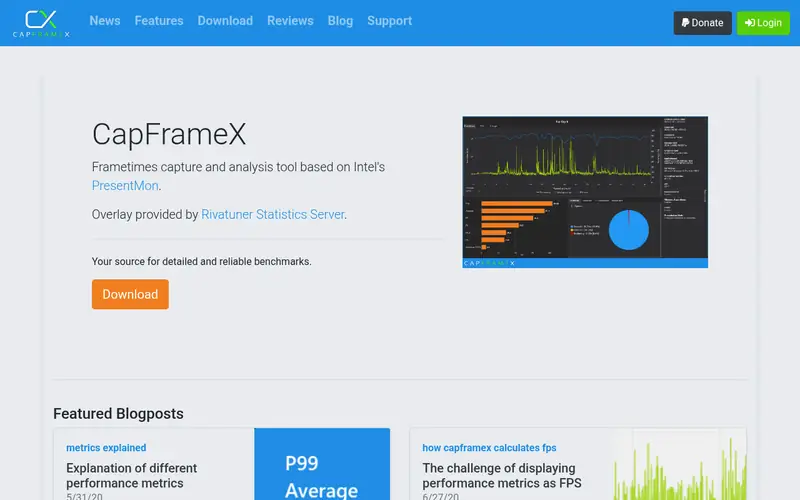
CapFrameX is a capture and analysis tool built around frame times rather than a live counter. It records a run, then presents charts for average frame rate, percentiles and frame time distribution. That makes it useful for comparing settings or driver versions on the same system.
It relies on PresentMon-style capture and integrates with common benchmarking tools. The output is more detailed than a simple overlay but takes longer to read. It is not the tool to leave running for a constant on-screen number. It suits people who want evidence of stutter rather than a quick glance at frame rate.
Where the price comes from
Free (no paid tier), as listed by the vendor (CapFrameX website). Confirm the current plan price before you buy.
Benefits
- Free and focused on frame time analysis
- captures and compares benchmark runs
- exports data for review
Drawbacks
- Not a permanent on-screen counter
- steeper learning curve than a simple overlay
Use case to skip: this limit matters to you: not a permanent on-screen counter.
Our take. A sensible pick for frame time capture and benchmark comparison.
If it does not fit, compare MSI Afterburner with RivaTuner Statistics Server or NVIDIA App in this list.
- Best for
- Simple built-in overlay on GeForce graphics cards
- Standout
- Free and official
- Starting price
- Free (requires an NVIDIA GeForce card)
- Free plan or trial
- Free plan
NVIDIA App is the current NVIDIA utility for driver updates, game settings and capture. It includes a performance overlay that can show frame rate and related statistics during a game. Because it is first-party software, it is less likely to conflict with the driver than a third-party hook.
The overlay is basic compared with Afterburner. It is aimed at people who want a quick frame rate readout without installing extra tools. The obvious limit is hardware: it only works on NVIDIA GeForce graphics cards. Users on other brands need a different option.
Where the price comes from
Free (requires an NVIDIA GeForce card), as listed by the vendor (NVIDIA App website). Confirm the current plan price before you buy.
Benefits
- Free and official
- simple performance overlay
- no separate overlay tool needed
Drawbacks
- Works only with NVIDIA GeForce cards
- fewer logging options than dedicated tools
Use case to skip: this limit matters to you: works only with NVIDIA GeForce cards.
Our take. A sensible pick for simple built-in overlay on GeForce graphics cards.
If it does not fit, compare MSI Afterburner with RivaTuner Statistics Server or CapFrameX in this list.
- Best for
- Built-in performance overlay on Radeon graphics cards
- Standout
- Free and official
- Starting price
- Free (requires an AMD Radeon card)
- Free plan or trial
- Free plan
AMD Software: Adrenalin Edition is the driver and settings package for Radeon graphics cards. It includes a performance monitoring section with an in-game overlay that can show frame rate and other metrics. Logging is available for supported sensors.
For Radeon owners this is the simplest route to an on-screen counter, since the software is already installed with the driver. The feature set depends on the driver version and the card. It is not a cross-vendor tool, so it does nothing on NVIDIA or Intel graphics.
Where the price comes from
Free (requires an AMD Radeon card), as listed by the vendor (AMD Software: Adrenalin Edition website). Confirm the current plan price before you buy.
Benefits
- Free and official
- includes a performance overlay and logging
- no extra install beyond the driver package
Drawbacks
- Works only with AMD Radeon cards
- overlay features vary by driver version
Use case to skip: this limit matters to you: works only with AMD Radeon cards.
Our take. A sensible pick for built-in performance overlay on Radeon graphics cards.
If it does not fit, compare MSI Afterburner with RivaTuner Statistics Server or CapFrameX in this list.
- Best for
- Sensor logging alongside frame data
- Standout
- Very broad sensor coverage
- Starting price
- Free for personal use (paid Pro version available)
- Free plan or trial
- Free plan
HWiNFO is a hardware monitoring tool that reads sensors across the system, including CPU, GPU, memory and storage. It does not produce a game frame counter by itself, but it can feed data into an overlay and log everything to a file.
The practical use is pairing it with an overlay tool so frame rate and frame time sit next to temperatures and clocks. That helps when you want to know whether a frame drop lines up with a thermal or power limit. The interface is dense and aimed at people who like data. A paid Pro version adds features for commercial use.
Where the price comes from
Free for personal use (paid Pro version available), as listed by the vendor (HWiNFO website). Confirm the current plan price before you buy.
Benefits
- Very broad sensor coverage
- can log to file
- pairs with overlay tools
Drawbacks
- Not a frame counter on its own
- interface is dense
Use case to skip: this limit matters to you: not a frame counter on its own.
Our take. A sensible pick for sensor logging alongside frame data.
If it does not fit, compare MSI Afterburner with RivaTuner Statistics Server or CapFrameX in this list.
- Best for
- Open frame data capture for developers and testers
- Standout
- Open source
- Starting price
- Free and open source
- Free plan or trial
- Free and open source
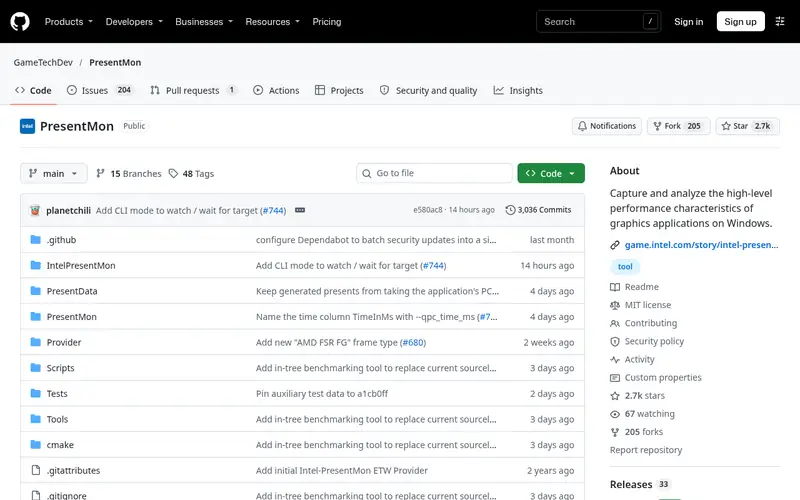
PresentMon is an open-source capture tool from Intel's GameTechDev group. It records frame presentation data from games, including frame times, and writes it to a file or streams it. Several consumer tools build on the same capture approach.
It is not a friendly on-screen overlay. It runs from the command line and is aimed at developers, reviewers and people building their own tools. If you want a ready-made counter, one of the options above is a better fit. If you want raw data and control, PresentMon is the foundation layer.
Where the price comes from
Free and open source, as listed by the vendor (PresentMon website). Confirm the current plan price before you buy.
Benefits
- Open source
- captures frame timing data
- used as a base by other tools
Drawbacks
- Command-line oriented
- not a consumer overlay
Use case to skip: this limit matters to you: command-line oriented.
Our take. A sensible pick for open frame data capture for developers and testers.
If it does not fit, compare MSI Afterburner with RivaTuner Statistics Server or CapFrameX in this list.
What to look for
Start with what you actually want to see. A live frame rate number is easy. Frame time in milliseconds tells you more about smoothness, because a steady 60 fps with spikes still feels bad. Tools that show both, and can log them, are more useful than a counter that only shows an average.
Check compatibility with your graphics card and your games. First-party overlays from NVIDIA and AMD are the safest bet on their own hardware. Third-party overlays hook into the game's rendering path, which is powerful but can clash with anti-cheat systems. Before you enable an overlay in a multiplayer game, check the developer's rules. Some competitive games treat overlays as a risk.
Consider whether you need logging. A counter is fine for a quick check. If you want to compare a settings change or a driver update, you need a tool that writes frame time data to a file. That is where capture tools like CapFrameX and PresentMon earn their place. Also think about overhead: an overlay costs a small amount of performance, and a heavy monitoring suite costs more than a single number.
Finally, check the price and licence. Most of these tools are free. HWiNFO has a paid Pro version for commercial use. None of the options here require a subscription for basic frame rate display.
Questions worth answering first
Buying checklist
- Confirm the tool supports your graphics card brand and driver version.
- Check whether the overlay is allowed by the anti-cheat rules of the games you play.
- Decide whether you need a live counter, frame time logging, or both.
- Confirm the tool can export data if you want to compare runs later.
- Check the licence terms if you plan to use it for paid work or commercial testing.
- Verify the current price and version on the official vendor page before installing.
FAQ
What is the difference between FPS and frame time?
FPS is the number of frames drawn per second. Frame time is how long one frame takes, in milliseconds. A 60 fps average can still feel uneven if individual frames take much longer than others. Frame time shows those spikes, which is why many tools display both.
Are FPS counter overlays allowed in multiplayer games?
It depends on the game. Many allow simple overlays, but some competitive titles restrict third-party software that hooks into the game. Check the developer's anti-cheat policy before enabling an overlay. First-party overlays from NVIDIA and AMD are usually the safest choice.
Do FPS overlays reduce performance?
Yes, slightly. Any overlay adds some overhead because it draws on top of the game and reads performance data. A single frame rate number costs little. A full monitoring suite with many sensors costs more. The impact is usually small but measurable on low-end systems.
Can I use these tools on a laptop?
Most of them work on laptops, but some sensors may be limited by the laptop's hardware and drivers. Integrated graphics may not expose the same data as a discrete card. Check the vendor documentation for your specific model before relying on a feature.
Is MSI Afterburner free?
Yes. MSI Afterburner is free and is offered as donationware, meaning the developer accepts voluntary contributions. There is no paid tier for the overlay or monitoring features. RivaTuner Statistics Server, which provides the on-screen display, ships with it at no cost.
Do I need a separate tool for frame time logging?
Not always. MSI Afterburner can log frame rate and frame time, and CapFrameX is built around capture and analysis. PresentMon offers raw data capture. A simple overlay without logging will not give you a file to review later, so pick a tool that matches what you need.
Sources we checked
Change log: First published 21 Nov 2026.