6 Best Keyboard Remapping Software in 2026
Microsoft PowerToys Keyboard Manager is the best starting point for most Windows users because it is free, official, and handles simple key and shortcut swaps without scripting. If you need conditional layers, macros, or cross-platform configs, Kanata is the stronger free and open-source choice. For deep Windows automation, AutoHotkey offers the most control, while macOS users should look at Karabiner-Elements.
 By Shihab Mia · Published 21 Nov 2026
We run no ads and no affiliate links at launch. The order of a list follows our published method. How lists are ordered: how we score.
Prices are the starting prices vendors list publicly. Plans change, so confirm the current price on the vendor page before you buy.
Key takeaways
- PowerToys Keyboard Manager is free from Microsoft and covers single-key and shortcut remaps only.
- AutoHotkey is free and open source, but you write scripts rather than click through menus.
- Kanata is free, open source, and works on Windows, macOS, and Linux from one config file.
- Karabiner-Elements is the main remapping tool for macOS and is free and open source.
- SharpKeys is a free Windows registry tool for permanent single-key swaps only.
Side-by-side
Grouped by fit and cost. Tap a product to jump to its full entry.
| Fit | Cost | |||
|---|---|---|---|---|
| Product | Best for | Standout feature | Listed starting price | Free plan or trial |
| 1Microsoft PowerToys Keyboard Manager | Simple key and shortcut swaps on Windows | Official Microsoft utility | Free (included in PowerToys) | Free and open source |
| 2AutoHotkey | Scripted remaps and automation on Windows | Very flexible scripting | Free (donation-supported) | Free and open source |
| 3Kanata | Cross-platform layer and hold-tap configs | One config across Windows, macOS, and Linux | Free (open-source project) | Free and open source |
| 4Karabiner-Elements | Keyboard remapping on macOS | Deep macOS integration | Free (open-source project) | Free and open source |
| 5SharpKeys | Permanent single-key swaps on Windows | Writes remaps to the Windows registry | Free (open-source project) | Free and open source |
| 6Keychron Launcher | Remapping Keychron keyboards in a browser | Runs in a browser with no install | Free (with supported Keychron keyboards) | Free |
How we picked
This comparison is based on research rather than lab testing. We reviewed each project's official documentation, vendor pages, and published feature lists, and checked which operating systems each tool supports and what remap types it documents. Pricing was taken from official sources; all six options are free, with some accepting donations. We also noted whether each tool uses a graphical interface, a config file, or the Windows registry, since that shapes setup effort. No hands-on benchmarks were run.
The 6 picks in detail

- Best for
- Simple key and shortcut swaps on Windows
- Standout
- Official Microsoft utility
- Starting price
- Free (included in PowerToys)
- Free plan or trial
- Free and open source
PowerToys is Microsoft's set of Windows utilities, and Keyboard Manager is the module for remapping. You pick a source key and a target key, or remap a whole shortcut such as Ctrl+C to a single key. Changes apply system-wide and can be toggled off without uninstalling anything. It installs from the Microsoft Store, GitHub, or winget, and the source code is published on GitHub.
The tool suits people who want a handful of swaps, like turning Caps Lock into Escape or fixing a broken key. The catch is scope: Keyboard Manager does not support layers, hold-tap behavior, per-app profiles, or macros. For those you need a scripting or config-based tool. It is also Windows-only, so it does nothing for macOS or Linux.
Where the price comes from
Free (included in PowerToys), as listed by the vendor (Microsoft PowerToys Keyboard Manager website). Confirm the current plan price before you buy.
Benefits
- Official Microsoft utility
- graphical remap editor
- no scripting needed
Drawbacks
- No layers or conditional logic
- Windows only
Use case to skip: this limit matters to you: no layers or conditional logic.
Our take. A sensible pick for simple key and shortcut swaps on Windows.
If it does not fit, compare AutoHotkey or Kanata in this list.
- Best for
- Scripted remaps and automation on Windows
- Standout
- Very flexible scripting
- Starting price
- Free (donation-supported)
- Free plan or trial
- Free and open source
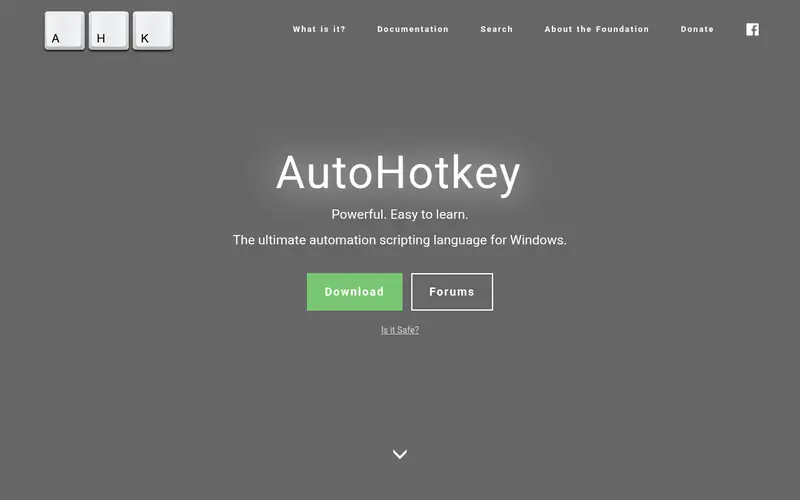
AutoHotkey is a free, open-source scripting language for Windows built around keyboard and mouse automation. A remap is a single line, such as CapsLock::Esc, and the same script can add hotkeys, hotstrings, and app-specific behavior. The current major version is AutoHotkey v2, which changed syntax from v1, so check which version a guide or script targets before copying it.
It suits users who want conditional logic, per-application rules, or text expansion alongside remapping. The catch is the learning curve: there is no graphical remap screen, and debugging a script takes more effort than ticking a box in PowerToys. Documentation and a large forum community are available, and the installer is a standard Windows executable.
Where the price comes from
Free (donation-supported), as listed by the vendor (AutoHotkey website). Confirm the current plan price before you buy.
Benefits
- Very flexible scripting
- huge community documentation
- handles macros and hotstrings
Drawbacks
- Requires learning its syntax
- Windows only
Use case to skip: this limit matters to you: requires learning its syntax.
Our take. A sensible pick for scripted remaps and automation on Windows.
If it does not fit, compare Microsoft PowerToys Keyboard Manager or Kanata in this list.
- Best for
- Cross-platform layer and hold-tap configs
- Standout
- One config across Windows, macOS, and Linux
- Starting price
- Free (open-source project)
- Free plan or trial
- Free and open source
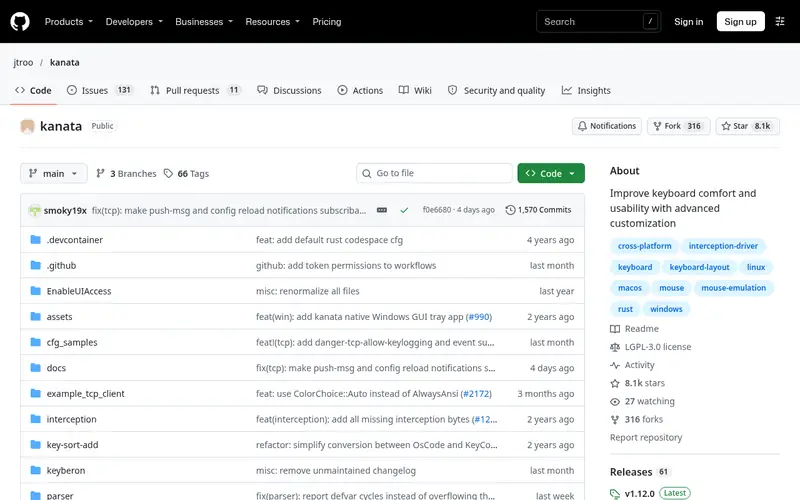
Kanata is an open-source keyboard remapper that runs on Windows, macOS, and Linux and reads a plain-text configuration file. It supports layers, tap-hold keys, macros, and multiple device handling, which puts it closer to firmware-level remapping than to a simple key swap tool. Because the config is a text file, it can be kept in version control and shared between machines.
It suits power users who want the same layout on several operating systems, or who need home-row mods and layer switching without flashing custom firmware. The catch is that everything is edited by hand in a config file, and on some platforms it needs elevated permissions or a virtual keyboard driver to intercept input. There is no official GUI, so expect to read the project documentation carefully before your first working config.
Where the price comes from
Free (open-source project), as listed by the vendor (Kanata website). Confirm the current plan price before you buy.
Benefits
- One config across Windows, macOS, and Linux
- supports layers and tap-hold
- text-based and versionable
Drawbacks
- Config-file only, no GUI
- steeper setup than a click-through tool
Use case to skip: this limit matters to you: config-file only, no GUI.
Our take. A sensible pick for cross-platform layer and hold-tap configs.
If it does not fit, compare Microsoft PowerToys Keyboard Manager or AutoHotkey in this list.
- Best for
- Keyboard remapping on macOS
- Standout
- Deep macOS integration
- Starting price
- Free (open-source project)
- Free plan or trial
- Free and open source
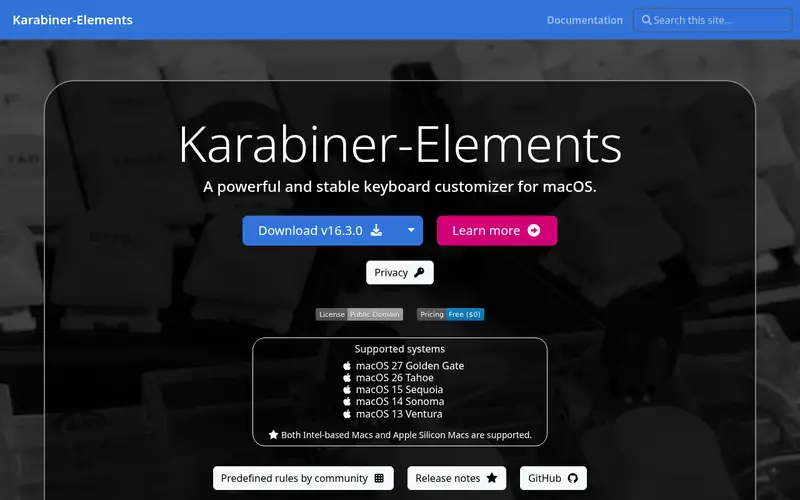
Karabiner-Elements is the long-standing open-source remapping tool for macOS. It handles simple key changes through a graphical interface and complex rules through JSON-based modifications, including layers, conditions, and per-keyboard device settings. It requires granting input monitoring and accessibility permissions in macOS System Settings before it can intercept keystrokes.
It suits Mac users who want more than the built-in modifier key settings, especially people who use external mechanical keyboards and want consistent behavior across them. The catch is platform lock-in: it does nothing on Windows or Linux. Complex modifications also mean editing JSON or importing rules from the community, and macOS updates occasionally require re-approving permissions.
Where the price comes from
Free (open-source project), as listed by the vendor (Karabiner-Elements website). Confirm the current plan price before you buy.
Benefits
- Deep macOS integration
- complex modification rules
- per-device settings
Drawbacks
- macOS only
- needs system permissions for input monitoring
Use case to skip: this limit matters to you: macOS only.
Our take. A sensible pick for keyboard remapping on macOS.
If it does not fit, compare Microsoft PowerToys Keyboard Manager or AutoHotkey in this list.
- Best for
- Permanent single-key swaps on Windows
- Standout
- Writes remaps to the Windows registry
- Starting price
- Free (open-source project)
- Free plan or trial
- Free and open source
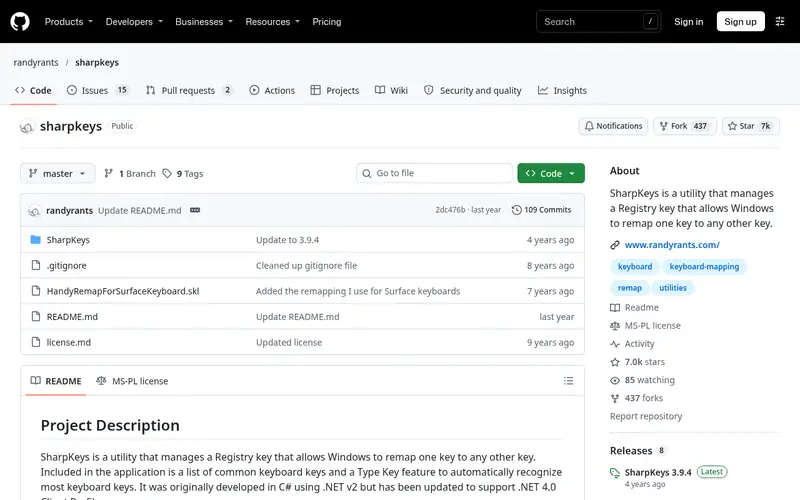
SharpKeys is a small open-source Windows utility that edits the registry scancode map to swap one key for another. Because the change lives in the registry, it persists without any program running in the background, which makes it useful on shared or low-resource machines. You add a mapping from a list, write it to the registry, and reboot.
It suits users who want a permanent fix, such as disabling Caps Lock or turning an unused key into something useful, and who do not want another startup app. The catch is that it only does one-to-one swaps: no shortcuts, no layers, no macros, and no per-app rules. Every change needs a sign-out or reboot, and you should note your original mappings so you can reverse them later.
Where the price comes from
Free (open-source project), as listed by the vendor (SharpKeys website). Confirm the current plan price before you buy.
Benefits
- Writes remaps to the Windows registry
- no background app needed
- very simple interface
Drawbacks
- One-to-one key swaps only
- requires a reboot to apply
Use case to skip: this limit matters to you: one-to-one key swaps only.
Our take. A sensible pick for permanent single-key swaps on Windows.
If it does not fit, compare Microsoft PowerToys Keyboard Manager or AutoHotkey in this list.
- Best for
- Remapping Keychron keyboards in a browser
- Standout
- Runs in a browser with no install
- Starting price
- Free (with supported Keychron keyboards)
- Free plan or trial
- Free
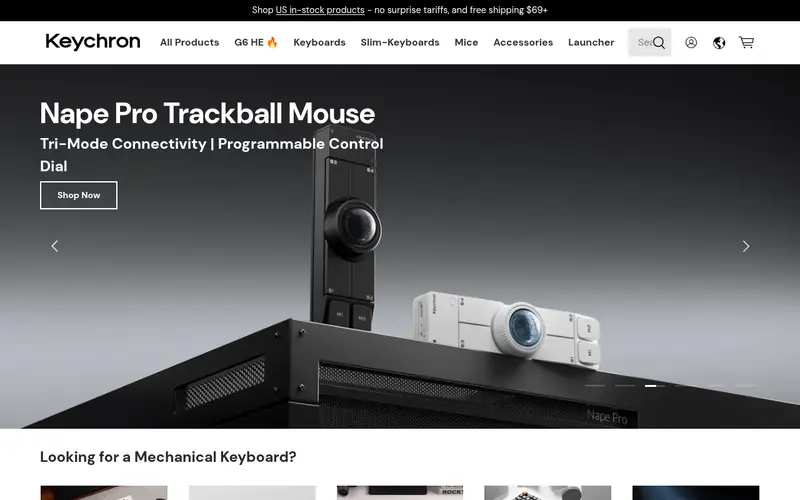
Keychron Launcher is Keychron's browser-based configurator for its QMK/VIA-compatible keyboards. It lets you remap keys, edit layers, and adjust per-key lighting without installing desktop software, connecting to the keyboard over USB. Because the remap is written to the keyboard firmware, it travels with the board to another computer.
It suits Keychron owners who want hardware-level remapping that works on any operating system the keyboard is plugged into. The catch is that it only applies to supported Keychron models; it is not a general-purpose remapper for other brands. You also need a Chromium-based browser and a wired connection for changes to apply reliably.
Where the price comes from
Free (with supported Keychron keyboards), as listed by the vendor (Keychron Launcher website). Confirm the current plan price before you buy.
Benefits
- Runs in a browser with no install
- works with VIA-compatible Keychron boards
- layer editing
Drawbacks
- Limited to supported Keychron models
- requires a compatible browser and cable
Use case to skip: this limit matters to you: limited to supported Keychron models.
Our take. A sensible pick for remapping Keychron keyboards in a browser.
If it does not fit, compare Microsoft PowerToys Keyboard Manager or AutoHotkey in this list.
What to look for
Start with your operating system. Windows has the widest choice, from PowerToys for simple swaps to AutoHotkey for scripting. macOS is best served by Karabiner-Elements, and Linux users generally go with Kanata or desktop-level tools. If you use more than one OS, a cross-platform config tool like Kanata avoids maintaining separate setups.
Next, decide how complex your remaps are. A single key swap, such as Caps Lock to Escape, needs only a basic tool. Layers, hold-tap keys, and per-application rules need a config engine or a scripting language. Macros and text expansion push you toward AutoHotkey or firmware-level tools. Be honest about this, because a simple tool that cannot do layers will frustrate you later.
Consider where the remap lives. Software remaps run on the computer and stop working on another machine. Firmware remaps, such as those written through Keychron Launcher or QMK, travel with the keyboard. Registry-based tools like SharpKeys persist without a background app but are Windows-only and hard to move.
Finally, check permissions and stability. Tools that intercept input need elevated rights or OS permissions, and some break after system updates. Read the project's documentation and release notes before relying on one for daily work.
Questions worth answering first
Buying checklist
- Confirm the tool supports your operating system and the version you run.
- Check whether it handles the remap type you need, such as layers, macros, or per-app rules.
- Verify whether changes persist without a background app or need a reboot.
- Read the official documentation for permission or driver requirements.
- Check the project's release activity to see whether it is maintained.
- Note how to undo a remap before you apply it.
FAQ
Is keyboard remapping software free?
Most of the tools here are free and open source, including PowerToys, AutoHotkey, Kanata, Karabiner-Elements, and SharpKeys. Keychron Launcher is free with supported Keychron keyboards. Costs usually come from paid alternatives or from your time learning a scripting or config language.
Does remapping work in games?
It depends on the game and the anti-cheat system. Some competitive games block or restrict remapping and macro tools, so check the game's rules before using scripts. Simple key swaps are usually safer than macro automation, but always confirm with the game's official policy.
Can I remap keys without installing software?
Yes, in two ways. SharpKeys writes swaps to the Windows registry, and firmware tools like Keychron Launcher store remaps on the keyboard itself. Both avoid a background app, but registry changes are Windows-only and firmware remaps only work on supported keyboards.
What is the difference between remapping and macros?
Remapping changes which key sends which signal. A macro sends a sequence of inputs from one key press. Tools like AutoHotkey and Kanata support both, while PowerToys Keyboard Manager and SharpKeys focus on remapping only.
Will remapping slow down my typing?
Software remaps add a small amount of processing, but for normal typing the difference is not noticeable in practice. Firmware remaps run on the keyboard controller. Latency concerns matter more for competitive gaming than for everyday typing.
Can I use one remap setup on Windows and macOS?
Yes, if you choose a cross-platform tool. Kanata reads the same config file on Windows, macOS, and Linux. Tools tied to one OS, such as PowerToys, Karabiner-Elements, and SharpKeys, require separate setups on each platform.
Sources we checked
Change log: First published 21 Nov 2026.