6 Best Laptop Battery Health Software in 2026
BatteryInfoView from NirSoft is the simplest pick for most Windows users who want a quick read on wear, design capacity and cycle count. It is free and needs no install. For deeper Windows reporting, HWiNFO adds sensor logging and a battery wear readout. Mac users are better served by coconutBattery, which reads the same data macOS keeps on charge cycles and capacity.
 By Shihab Mia · Published 21 Nov 2026
We run no ads and no affiliate links at launch. The order of a list follows our published method. How lists are ordered: how we score.
Prices are the starting prices vendors list publicly. Plans change, so confirm the current price on the vendor page before you buy.
Key takeaways
- BatteryInfoView is free and portable, so you can run it from a USB stick without installing anything.
- HWiNFO is free for personal use and adds logging, which helps track wear over months.
- coconutBattery has a free version; its paid Plus tier adds extra features.
- On Linux, upower and the /sys/class/power_supply files report capacity and cycle data at no cost.
- No tool can reverse wear. These tools read data the laptop firmware already records.
Side-by-side
Grouped by fit and cost. Tap a product to jump to its full entry.
| Fit | Cost | |||
|---|---|---|---|---|
| Product | Best for | Standout feature | Listed starting price | Free plan or trial |
| 1BatteryInfoView | quick Windows wear check with no install | Portable, no install needed | Free (freeware) | Free plan |
| 2HWiNFO | sensor logging and wear tracking over time | Logs sensor data to a file | Free for personal use (Pro edition sold separately) | Free plan |
| 3coconutBattery | macOS battery capacity and cycle history | Shows current capacity against design capacity | See vendor site (free version plus paid Plus tier) | Free plan |
| 4Battery Health (Windows built-in) | a no-install baseline report | Already on the machine | Free (included with Windows) | Free plan |
| 5upower | Linux command-line battery checks | Present on most Linux desktops | Free (open source) | Free and open source |
| 6BatteryCare | simple Windows battery monitoring | Shows wear level and discharge rate | See vendor site | Free plan |
How we picked
We compared these tools by reading vendor pages, official documentation and published pricing as of late 2026. We checked which platforms each tool supports, what battery fields it reports, whether it logs over time, and how it is licensed. We did not run hands-on tests. Where a price was not clearly published, we wrote "See vendor site" rather than guess. The ranking reflects how directly each tool answers the basic question: how worn is this battery, and on which platform.
The 6 picks in detail
- Best for
- quick Windows wear check with no install
- Standout
- Portable, no install needed
- Starting price
- Free (freeware)
- Free plan or trial
- Free plan
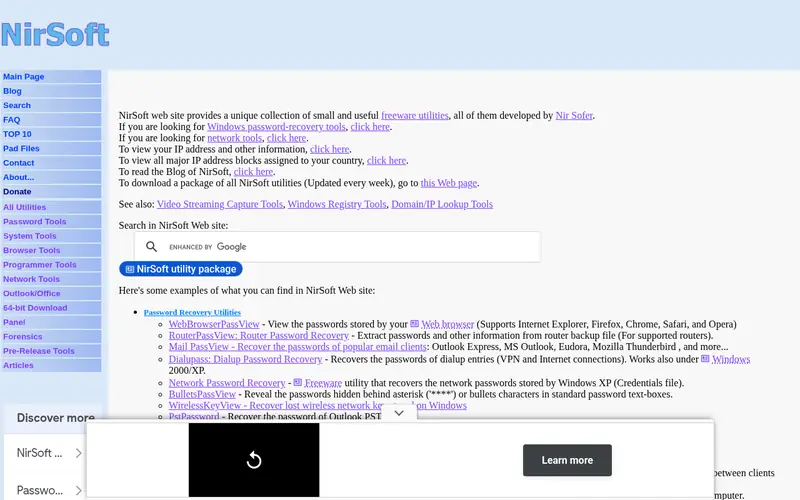
BatteryInfoView is a small NirSoft utility for Windows. It reads the battery data the system exposes and shows design capacity, full charge capacity, current capacity, voltage and cycle count where the firmware reports it. You can compare design capacity against full charge capacity to estimate wear.
It runs as a portable executable, so you can copy it to a USB stick and check several laptops. The main catch is that it is a snapshot tool. It does not chart wear over time, and some laptops do not report cycle count to Windows, so that field may be blank.
Where the price comes from
Free (freeware), as listed by the vendor (BatteryInfoView website). Confirm the current plan price before you buy.
Benefits
- Portable, no install needed
- shows design capacity and full charge capacity
- simple export to text or CSV
Drawbacks
- Windows only
- interface looks dated
- no long-term logging
Use case to skip: this limit matters to you: windows only.
Our take. A sensible pick for quick Windows wear check with no install.
If it does not fit, compare HWiNFO or coconutBattery in this list.

- Best for
- sensor logging and wear tracking over time
- Standout
- Logs sensor data to a file
- Starting price
- Free for personal use (Pro edition sold separately)
- Free plan or trial
- Free plan
HWiNFO is a hardware information and monitoring tool for Windows. Its sensors window includes a battery section with wear level, designed capacity and remaining capacity where the firmware provides them. You can log readings to CSV and compare them weeks apart.
The interface is dense and aimed at enthusiasts. The free version is for personal use, and commercial use requires the Pro edition. It is a good fit if you want a record of how capacity changes over time rather than a one-off reading.
Where the price comes from
Free for personal use (Pro edition sold separately), as listed by the vendor (HWiNFO website). Confirm the current plan price before you buy.
Benefits
- Logs sensor data to a file
- shows battery wear level
- covers many hardware sensors
Drawbacks
- Dense interface
- paid Pro edition for commercial use
- Windows only
Use case to skip: this limit matters to you: dense interface.
Our take. A sensible pick for sensor logging and wear tracking over time.
If it does not fit, compare BatteryInfoView or coconutBattery in this list.
- Best for
- macOS battery capacity and cycle history
- Standout
- Shows current capacity against design capacity
- Starting price
- See vendor site (free version plus paid Plus tier)
- Free plan or trial
- Free plan
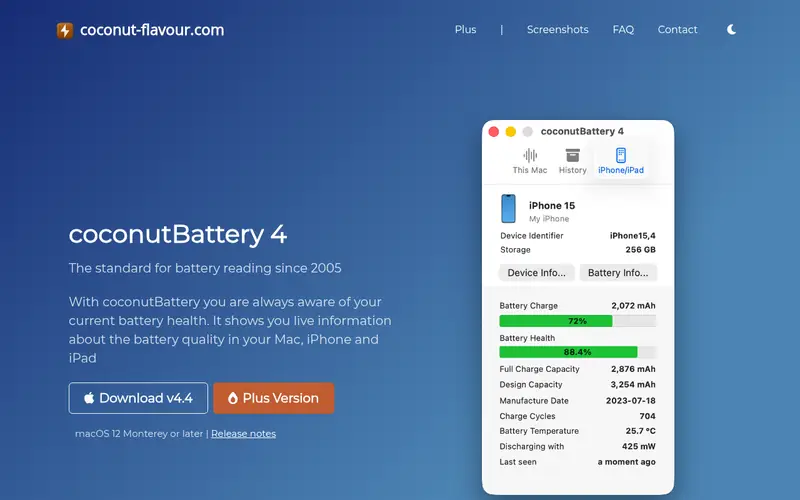
coconutBattery is a macOS app that reads the battery data Apple records. It shows current charge, design capacity, current capacity and cycle count, and it can save a history so you can see how capacity falls over time. It also reads battery data from connected iOS devices.
The free version covers the core readings. The paid Plus tier adds extra features, and the vendor sets the price, so check the site before buying. It is the most direct option for Mac users who want a wear figure without digging through System Information.
Where the price comes from
See vendor site (free version plus paid Plus tier), as listed by the vendor (coconutBattery website). Confirm the current plan price before you buy.
Benefits
- Shows current capacity against design capacity
- tracks cycle count
- keeps a history of readings
Drawbacks
- macOS only
- some features sit behind the paid tier
- pricing changes, so check the vendor site
Use case to skip: this limit matters to you: macOS only.
Our take. A sensible pick for macOS battery capacity and cycle history.
If it does not fit, compare BatteryInfoView or HWiNFO in this list.

- Best for
- a no-install baseline report
- Standout
- Already on the machine
- Starting price
- Free (included with Windows)
- Free plan or trial
- Free plan
Windows includes a battery report you can generate from the command line with powercfg /batteryreport. It writes an HTML file showing design capacity, full charge capacity, recent usage and, on many laptops, cycle count. You open it in any browser.
This is the safest first step because nothing is downloaded. The catch is that it is a static report. You have to regenerate it and compare files yourself to see wear over time, and some firmware does not report cycle count to Windows at all.
Where the price comes from
Free (included with Windows), as listed by the vendor (Battery Health (Windows built-in) website). Confirm the current plan price before you buy.
Benefits
- Already on the machine
- generates an HTML report
- no third-party download
Drawbacks
- Report is a snapshot
- cycle count not always present
- no history
Use case to skip: this limit matters to you: report is a snapshot.
Our take. A sensible pick for a no-install baseline report.
If it does not fit, compare BatteryInfoView or HWiNFO in this list.
- Best for
- Linux command-line battery checks
- Standout
- Present on most Linux desktops
- Starting price
- Free (open source)
- Free plan or trial
- Free and open source
upower is a freedesktop project that exposes power device information on Linux. Running upower -d prints battery details including present capacity, energy full, energy full design and, where the kernel exposes it, cycle count. You can also read the raw values under /sys/class/power_supply.
It is free and open source and is already installed on many distributions. The catch is that it is command line only, and the amount of detail depends on what your kernel and firmware report. Some laptops expose capacity but not cycle count.
Where the price comes from
Free (open source), as listed by the vendor (upower website). Confirm the current plan price before you buy.
Benefits
- Present on most Linux desktops
- scriptable
- reads kernel power data
Drawbacks
- Command line only
- detail depends on kernel and firmware
- no GUI
Use case to skip: this limit matters to you: command line only.
Our take. A sensible pick for linux command-line battery checks.
If it does not fit, compare BatteryInfoView or HWiNFO in this list.
- Best for
- simple Windows battery monitoring
- Standout
- Shows wear level and discharge rate
- Starting price
- See vendor site
- Free plan or trial
- Free plan
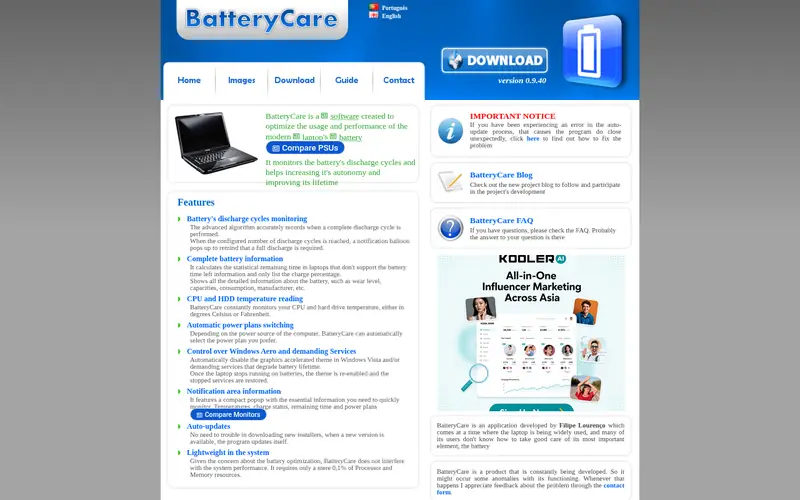
BatteryCare is a Windows tray utility that shows battery wear level, discharge rate and estimated remaining time. It is aimed at users who want a small always-on monitor rather than a full hardware information suite.
The interface is simple and the footprint is small. The main catch is that the project moves slowly, so check that it installs and runs cleanly on your Windows version before relying on it. It is a reasonable lightweight option, but it does not replace a full sensor tool.
Where the price comes from
See vendor site, as listed by the vendor (BatteryCare website). Confirm the current plan price before you buy.
Benefits
- Shows wear level and discharge rate
- small tray app
- simple interface
Drawbacks
- Windows only
- development is slow
- limited history features
Use case to skip: this limit matters to you: windows only.
Our take. A sensible pick for simple Windows battery monitoring.
If it does not fit, compare BatteryInfoView or HWiNFO in this list.
What to look for
Start with the numbers you actually need. Design capacity is what the battery held when new. Full charge capacity is what it holds now. Wear is roughly the gap between them, expressed as a percentage. Cycle count tells you how many charge cycles the pack has been through. Not every laptop reports all three to the operating system, so check what your machine exposes before you blame the software.
Match the tool to your platform. Windows has the built-in powercfg report, and third-party tools add logging and sensor detail. macOS keeps its own battery data, and coconutBattery reads it. Linux exposes data through upower and the kernel. Cross-platform tools exist but often show less than a native one.
Decide whether you want a snapshot or a history. A one-off reading tells you wear today. A logging tool lets you compare months apart and spot a sudden drop. If you suspect a failing pack, a log is more useful than a single number.
Check licensing before you install. Some tools are free for personal use only, and commercial use needs a paid licence. Others are freeware or open source. Read the vendor terms rather than assuming.
Finally, treat the readings as estimates. Firmware calibration varies, and a wear figure is not a guarantee of runtime. Use the numbers to spot trends, not to predict exact battery life.
Questions worth answering first
Buying checklist
- Confirm the tool supports your operating system and laptop model.
- Check whether it reports design capacity, full charge capacity and cycle count on your machine.
- Decide if you need a one-off snapshot or logging over time.
- Read the licence terms for personal versus commercial use.
- Verify the price on the vendor site before paying.
- Try the free or built-in option first to see what your firmware reports.
FAQ
What is laptop battery wear?
Wear is the gap between the battery's design capacity when new and its current full charge capacity. A pack that held 50 Wh when new and holds 40 Wh now shows roughly 20 percent wear. Tools estimate this from firmware data, so treat the figure as a guide rather than an exact measurement.
Can software fix a worn battery?
No. These tools only read data the firmware records. Wear comes from chemical aging and charge cycles, and it cannot be reversed by software. A tool helps you measure wear and decide when to replace the pack or adjust charging habits.
Why is cycle count missing in some tools?
Many laptop firmware implementations do not report cycle count to the operating system. In that case, Windows tools and Linux utilities show a blank or zero. Design and full charge capacity are more commonly reported, so use those to estimate wear.
Is the Windows battery report enough?
For a quick check, yes. The powercfg /batteryreport command writes an HTML file with design and full charge capacity. It is free and needs no download. If you want history or more sensor detail, a third-party tool adds that.
Do Mac and Windows need different tools?
Usually yes. macOS keeps its own battery data, and coconutBattery reads it. Windows tools read the data Windows exposes. A few cross-platform tools exist, but native tools tend to show more fields on their own platform.
Are free tools safe to use?
Free and open-source tools and well-known freeware are generally fine, but download only from the official vendor site. Avoid bundled installers from third-party download pages. Check the licence for commercial use, and keep a system backup before installing anything new.
Sources we checked
Change log: First published 21 Nov 2026.