6 Best Multi-Monitor Software Tools in 2026
DisplayFusion is the top pick for most Windows users who want deep control over multiple monitors, including taskbars, window snapping and profiles. UltraMon suits people who mainly want a second taskbar and simple window buttons. For macOS, BetterDisplay is the strongest choice for scaling and display control. All three are paid tools, though each offers a way to try before buying.
 By Shihab Mia · Published 21 Nov 2026
We run no ads and no affiliate links at launch. The order of a list follows our published method. How lists are ordered: how we score.
Prices are the starting prices vendors list publicly. Plans change, so confirm the current price on the vendor page before you buy.
Key takeaways
- DisplayFusion Pro starts at a one-time licence price listed on the vendor site; a free version exists with fewer features.
- UltraMon is a paid Windows tool with a free trial; it focuses on taskbars and window management.
- BetterDisplay for macOS has a free version and a paid Pro upgrade.
- Most tools here are one-time purchases, not subscriptions, so check the licence terms.
- Free options exist, but they usually limit features like per-monitor taskbars or saved profiles.
Side-by-side
Grouped by fit and cost. Tap a product to jump to its full entry.
| Fit | Cost | |||
|---|---|---|---|---|
| Product | Best for | Standout feature | Listed starting price | Free plan or trial |
| 1DisplayFusion | Deep Windows multi-monitor control | Per-monitor taskbars | See vendor site (one-time licence, Pro edition) | Free plan |
| 2UltraMon | Simple second taskbar on Windows | Adds taskbars to secondary monitors | See vendor site (one-time licence) | Free trial |
| 3BetterDisplay | macOS display scaling and control | Fine control over resolution and scaling | See vendor site (Pro upgrade) | Free plan |
| 4Dual Monitor Tools | Free basic Windows utilities | Free and open source | Free | Free plan |
| 5Actual Multiple Monitors | Windows taskbar and window tools | Multi-monitor taskbars | See vendor site (one-time licence) | Free trial |
| 6Monitorian | Quick brightness control on Windows | Free and open source | Free | Free plan |
How we picked
This comparison is based on research, not hands-on testing. We reviewed each vendor's official product pages, feature lists, documentation and published pricing, plus open-source project pages for the free tools. We checked platform support, licence model, core features and whether a free version or trial exists. Prices are shown as "See vendor site" where the vendor does not publish a fixed figure we could confirm. No benchmark results or lab measurements are claimed.
The 6 picks in detail
- Best for
- Deep Windows multi-monitor control
- Standout
- Per-monitor taskbars
- Starting price
- See vendor site (one-time licence, Pro edition)
- Free plan or trial
- Free plan
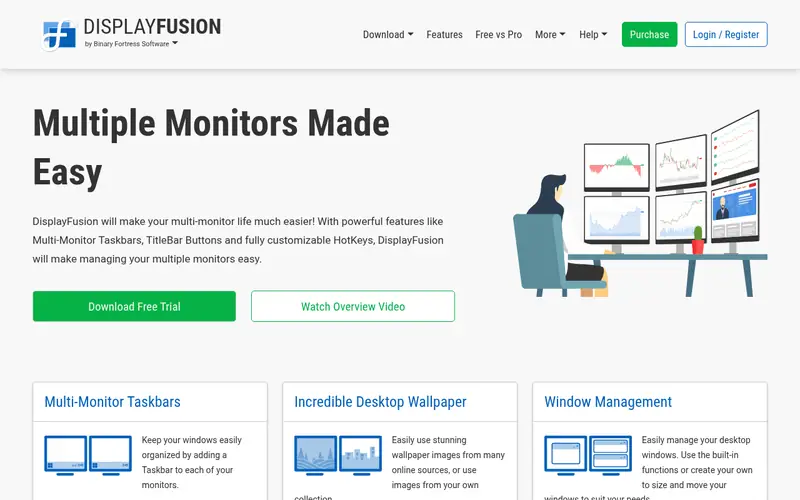
DisplayFusion is a Windows application for managing multiple monitors. The vendor lists features including multi-monitor taskbars, window snapping, monitor configuration profiles, wallpaper management and custom scripts. It also supports triggers that run actions when windows move or monitors change.
The free version covers basic functions. The Pro edition adds the fuller feature set, and the vendor sells it as a one-time licence rather than a subscription. It suits users with three or more displays who want saved layouts and per-monitor taskbars.
The main catch is platform. There is no macOS version, and the most useful automation features require the paid edition.
Where the price comes from
See vendor site (one-time licence, Pro edition), as listed by the vendor (DisplayFusion website). Confirm the current plan price before you buy.
Benefits
- Per-monitor taskbars
- strong window snapping and profiles
- supports scripts and triggers
Drawbacks
- Windows only
- best features sit behind the paid Pro licence
Use case to skip: this limit matters to you: windows only.
Our take. A sensible pick for deep Windows multi-monitor control.
If it does not fit, compare UltraMon or BetterDisplay in this list.
- Best for
- Simple second taskbar on Windows
- Standout
- Adds taskbars to secondary monitors
- Starting price
- See vendor site (one-time licence)
- Free plan or trial
- Free trial
UltraMon is a Windows utility that adds a taskbar to each monitor and provides buttons to move windows and maximise across displays. The vendor offers a free trial before purchase and sells a one-time licence.
It is a lighter option than DisplayFusion. Users who mainly want a taskbar on a second screen and quick window movement will find it sufficient. It does not aim to match the scripting and profile depth of larger suites.
The catch is that it is Windows only and its development pace is slower than some competitors, so check the vendor site for current Windows version support.
Where the price comes from
See vendor site (one-time licence), as listed by the vendor (UltraMon website). Confirm the current plan price before you buy.
Benefits
- Adds taskbars to secondary monitors
- window buttons for moving windows between screens
- long-established tool
Drawbacks
- Windows only
- feature set is narrower than DisplayFusion
Use case to skip: this limit matters to you: windows only.
Our take. A sensible pick for simple second taskbar on Windows.
If it does not fit, compare DisplayFusion or BetterDisplay in this list.
- Best for
- macOS display scaling and control
- Standout
- Fine control over resolution and scaling
- Starting price
- See vendor site (Pro upgrade)
- Free plan or trial
- Free plan
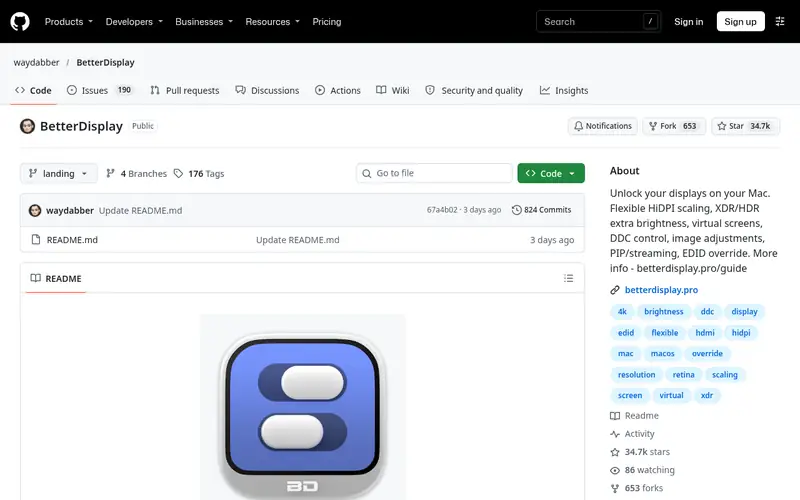
BetterDisplay is a macOS app for managing displays. It lets users create custom resolutions, adjust scaling and control brightness and contrast on supported external monitors. The project is distributed openly, with a free version and a paid Pro upgrade.
It suits Mac users running external monitors who need more control than macOS System Settings provides, especially for scaling and HiDPI options. The vendor documents supported features on the project page.
The catch is that it is macOS only, and some features depend on the monitor and connection type. Check the project documentation before relying on a specific feature.
Where the price comes from
See vendor site (Pro upgrade), as listed by the vendor (BetterDisplay website). Confirm the current plan price before you buy.
Benefits
- Fine control over resolution and scaling
- works with external displays
- free version available
Drawbacks
- macOS only
- advanced features need the Pro upgrade
Use case to skip: this limit matters to you: macOS only.
Our take. A sensible pick for macOS display scaling and control.
If it does not fit, compare DisplayFusion or UltraMon in this list.
- Best for
- Free basic Windows utilities
- Standout
- Free and open source
- Starting price
- Free
- Free plan or trial
- Free plan
Dual Monitor Tools is a free, open-source collection of small Windows programs for multi-monitor setups. It includes tools for moving the cursor between screens, managing wallpapers, swapping screens and setting hotkeys.
It suits users who want a few specific fixes without paying for a full suite. Because it is a set of separate utilities rather than one integrated app, the experience is less polished than commercial tools.
The catch is that it is Windows only and does not offer the taskbar or profile features of paid suites. Check the project site for current release notes.
Where the price comes from
Free, as listed by the vendor (Dual Monitor Tools website). Confirm the current plan price before you buy.
Benefits
- Free and open source
- includes cursor, wallpaper and hotkey tools
- lightweight
Drawbacks
- Windows only
- interface is basic and features are split across small apps
Use case to skip: this limit matters to you: windows only.
Our take. A sensible pick for free basic Windows utilities.
If it does not fit, compare DisplayFusion or UltraMon in this list.
- Best for
- Windows taskbar and window tools
- Standout
- Multi-monitor taskbars
- Starting price
- See vendor site (one-time licence)
- Free plan or trial
- Free trial
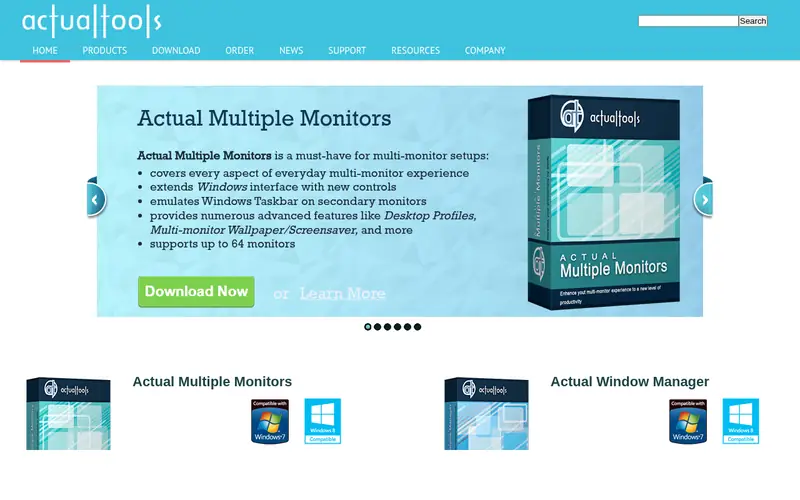
Actual Multiple Monitors is a Windows tool from Actual Tools. The vendor lists multi-monitor taskbars, window buttons, wallpaper management and desktop profiles. It is sold as a paid licence with a trial period.
It suits Windows users who want taskbar and window controls similar to DisplayFusion but with a different feature mix. The vendor also sells related window-management products, so check which edition covers the features you need.
The catch is that it is Windows only and requires a paid licence after the trial. Compare the feature list against DisplayFusion before choosing.
Where the price comes from
See vendor site (one-time licence), as listed by the vendor (Actual Multiple Monitors website). Confirm the current plan price before you buy.
Benefits
- Multi-monitor taskbars
- window management buttons
- desktop profiles
Drawbacks
- Windows only
- trial then paid licence
Use case to skip: this limit matters to you: windows only.
Our take. A sensible pick for windows taskbar and window tools.
If it does not fit, compare DisplayFusion or UltraMon in this list.
- Best for
- Quick brightness control on Windows
- Standout
- Free and open source
- Starting price
- Free
- Free plan or trial
- Free plan
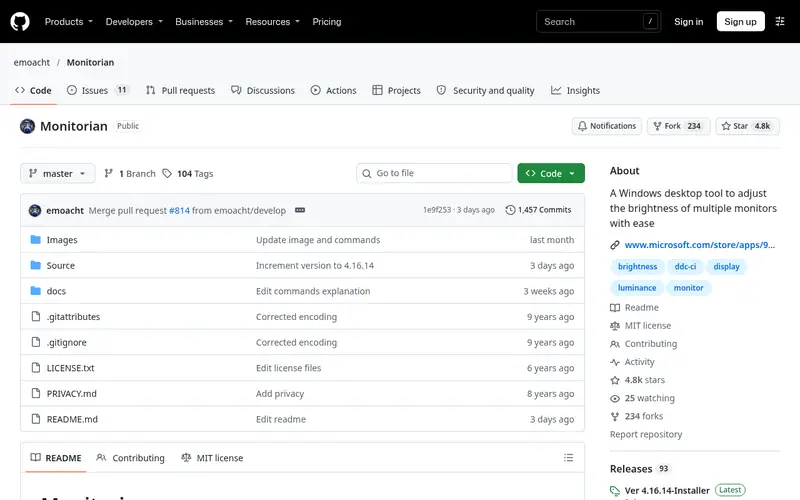
Monitorian is a free, open-source Windows app for adjusting the brightness of multiple monitors from one place. It works with monitors that support DDC/CI control, which the project documents.
It suits users who want a single slider set for several displays without a full management suite. It does not handle taskbars, window snapping or saved layouts.
The catch is that it depends on monitor support for DDC/CI, so some displays may not respond. Check the project page for compatibility notes.
Where the price comes from
Free, as listed by the vendor (Monitorian website). Confirm the current plan price before you buy.
Benefits
- Free and open source
- adjusts brightness of multiple monitors
- simple tray interface
Drawbacks
- Windows only
- limited to brightness and related controls
Use case to skip: this limit matters to you: windows only.
Our take. A sensible pick for quick brightness control on Windows.
If it does not fit, compare DisplayFusion or UltraMon in this list.
What to look for
Start with your operating system. Most full multi-monitor suites are Windows only, while macOS users have fewer options and often rely on scaling tools. Confirm the tool supports your OS version before paying.
Decide which features matter. Per-monitor taskbars, window snapping, saved profiles and hotkeys are the common reasons people buy a suite. If you only need brightness control or cursor movement, a free utility may be enough.
Check the licence model. Many of these tools are one-time purchases, which can be cheaper over time than subscriptions. Read whether the licence covers future major versions and how many computers it covers.
Look at monitor support. Features like brightness control through DDC/CI depend on the display and cable. Resolution and scaling tools depend on the GPU and connection type. Vendor documentation usually lists limits.
Finally, test with your real setup. Trials and free versions let you confirm that taskbars, profiles and scaling behave correctly with your monitors, graphics card and Windows or macOS version before you commit.
Questions worth answering first
Buying checklist
- Confirm the tool supports your exact operating system version.
- Check whether the licence is one-time or a subscription.
- Verify the feature you need, such as per-monitor taskbars, is in the edition you are buying.
- Confirm how many computers the licence covers.
- Test the free version or trial with your monitors and graphics card.
- Check that brightness or scaling features work with your display and cable type.
FAQ
Do I need paid software for multiple monitors?
No. Windows and macOS include basic multi-monitor settings, and free tools like Dual Monitor Tools and Monitorian cover simple tasks. Paid suites add per-monitor taskbars, saved profiles and automation, which matter more as the number of displays grows.
Is DisplayFusion available for macOS?
No. DisplayFusion is a Windows application. Mac users typically look at tools like BetterDisplay for scaling and display control, or rely on built-in macOS settings for basic arrangement.
What is DDC/CI and why does it matter?
DDC/CI is a standard that lets software adjust monitor settings such as brightness over the display cable. Tools like Monitorian rely on it. Support varies by monitor and connection, so check your display's documentation before depending on it.
Are these tools one-time purchases or subscriptions?
It varies. DisplayFusion, UltraMon and Actual Multiple Monitors are sold as one-time licences according to their vendor pages. BetterDisplay uses a free version with a paid Pro upgrade. Always confirm the current terms on the vendor site.
Can I run these tools with three or more monitors?
Yes, most are designed for multi-monitor setups and scale to several displays. Check the vendor documentation for any limits, and confirm your graphics card supports the number of displays you plan to use.
Do free options limit features?
Yes. Free versions usually cover basic functions but hold back advanced features like per-monitor taskbars, profiles or automation. Open-source tools are fully free but narrower in scope. Compare the feature list before deciding.
Sources we checked
Change log: First published 21 Nov 2026.